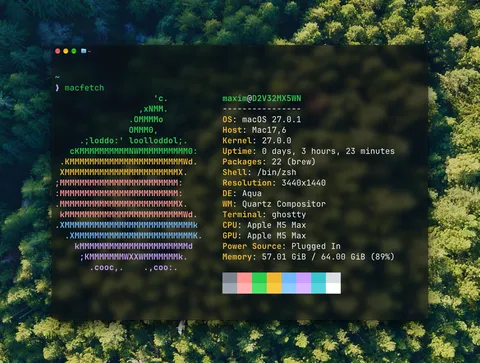
I’ve set up three Macs from scratch in the past couple of months. By the third, I realized I was repeating the same steps, so I wrote them down for next time.
This is my checklist for a minimal macOS setup. I’ll keep it updated as macOS and the tools change.
Accounts and Homebrew
- Sign in to iCloud.
- Install Chrome and sign in.
- Install the Bitwarden extension and sign in.
- Install Homebrew.
- Open my Brewfile and download the raw file as
~/Downloads/Brewfile. Then run:
brew bundle --file=~/Downloads/BrewfileThis installs all the apps and utilities I need (incl. Ghostty, Raycast, Zed, Starship). Remove any entries you don’t need before running it.
Font
Download JetBrains Mono Nerd Font, unzip it and install it with Font Book.
System Settings
These are my preferences grouped by pane. Some options depend on the macOS version.
Desktop & Dock
- Minimized window animation: Scale Effect.
- Window title bar double-click action: Fill.
- Turn on minimizing windows into the application icon and automatic Dock hiding.
- Turn off opening animations and suggested or recent apps.
- Desktop & Stage Manager: turn off Show Items both on the desktop and in Stage Manager. Set Click wallpaper to show desktop to Only in Stage Manager.
- Widgets: turn off Show Widgets both on the desktop and in Stage Manager.
- Mission Control: turn on Group windows by application.
Displays
Turn off Automatically adjust brightness and True Tone.
Battery
- Set the energy mode on the power adapter to High Power.
- Under Options, turn on Prevent automatic sleeping on power adapter when the display is off.
Lock Screen
- Turn display off on battery when inactive: For 10 minutes.
- Turn display off on power adapter when inactive: For 30 minutes.
- Turn off Show user name and photo.
Keyboard
Turn off Adjust keyboard brightness in low light. Under Keyboard Shortcuts:
- Spotlight: disable both shortcuts to free up ⌘ Space for Raycast.
- Mission Control: disable Quick Note and Game Overlay.
- Modifier Keys: remap Caps Lock to ⌘.
- Keyboard: set Move focus to next window to ⌘ §.
Menu Bar
- Keep Wi-Fi, battery, focus and sound in the menu bar. Hide all the other items.
- Under Battery, turn on Show percentage.
- Under Clock, turn off Show the day of the week.
- Turn off Show suggestions in Control Gallery.
Finder
Open the settings with ⌘ ,
- General: uncheck everything under Show these items on the desktop. Set New Finder windows show to your home folder and turn off Suggest file names.
- Tags: delete all unused tags.
- Sidebar: uncheck all the items you don’t need.
- Advanced: turn on Show all filename extensions. Turn off the warnings before changing an extension or removing a file from iCloud Drive. Set When performing a search to
Search the Current Folder.
In your home folder, select View > as List and enable View > Show Path Bar and View > Show Status Bar. Reorder the sidebar as needed.
Terminal and shell
Create the config files:
mkdir -p ~/.config/ghostty ~/.config/misetouch ~/.config/ghostty/config ~/.config/mise/config.tomltouch ~/.zshrc ~/.gitconfig ~/.gitattributesCopy the configs from my dotfiles into the corresponding files:
| Config | Destination |
|---|---|
| Ghostty | ~/.config/ghostty/config |
| mise | ~/.config/mise/config.toml |
| Zsh | ~/.zshrc |
| Git | ~/.gitconfig |
| Git attributes | ~/.gitattributes |
Remove my AWS_PROFILE from the mise config and set your name and email in the Git config. Install the mise tools before opening a new shell, since the Zsh config uses them:
mise installEditor
I’ve been using Zed lately, with the following extensions and configs.
Extensions
Settings
Copy my settings to ~/.config/zed/settings.json.
Key bindings
Copy my keymap to ~/.config/zed/keymap.json.
Command line
Run cli: install cli binary from the command palette to enable zed . in the terminal.
Raycast
Set ⌘ Space as the launch hotkey and configure the shortcuts below in settings.
Shortcuts
| Action | Shortcut |
|---|---|
| Chrome | ⌘ ⌥ 1 |
| Ghostty | ⌘ ⌥ 2 |
| Zed | ⌘ ⌥ 3 |
| Slack (once installed) | ⌘ ⌥ 4 |
| Screenshot | ⌘ ⌥ S |
| Search Emoji | ⌘ ⌥ E |
| Lock Screen | ⌘ ⌥ L |
| Pick Color | ⌘ ⌥ C |
Window management
Set window size cycling to 1/2, 2/3, and 1/3. Then assign these shortcuts:
| Action | Shortcut |
|---|---|
| Left half | ⌘ ⌥ ← |
| Right half | ⌘ ⌥ → |
| Center third | ⌘ ⌥ ↑ |
| Maximize | ⌘ ⌥ F |